
Micky
Marketing toolkit for affiliates and small sellers · User Guide
This is the full user guide for Micky. The same guide is built into the app (the Manual button, top right).
One toolkit, two jobs. If you promote other people's offers, you're an Affiliate. If you own an app, store, or service and want to be found, you're a Seller. Pick your side on the opening screen - your workspace shows only the tools for your job, so there's nothing to get confused by.
1. Getting started
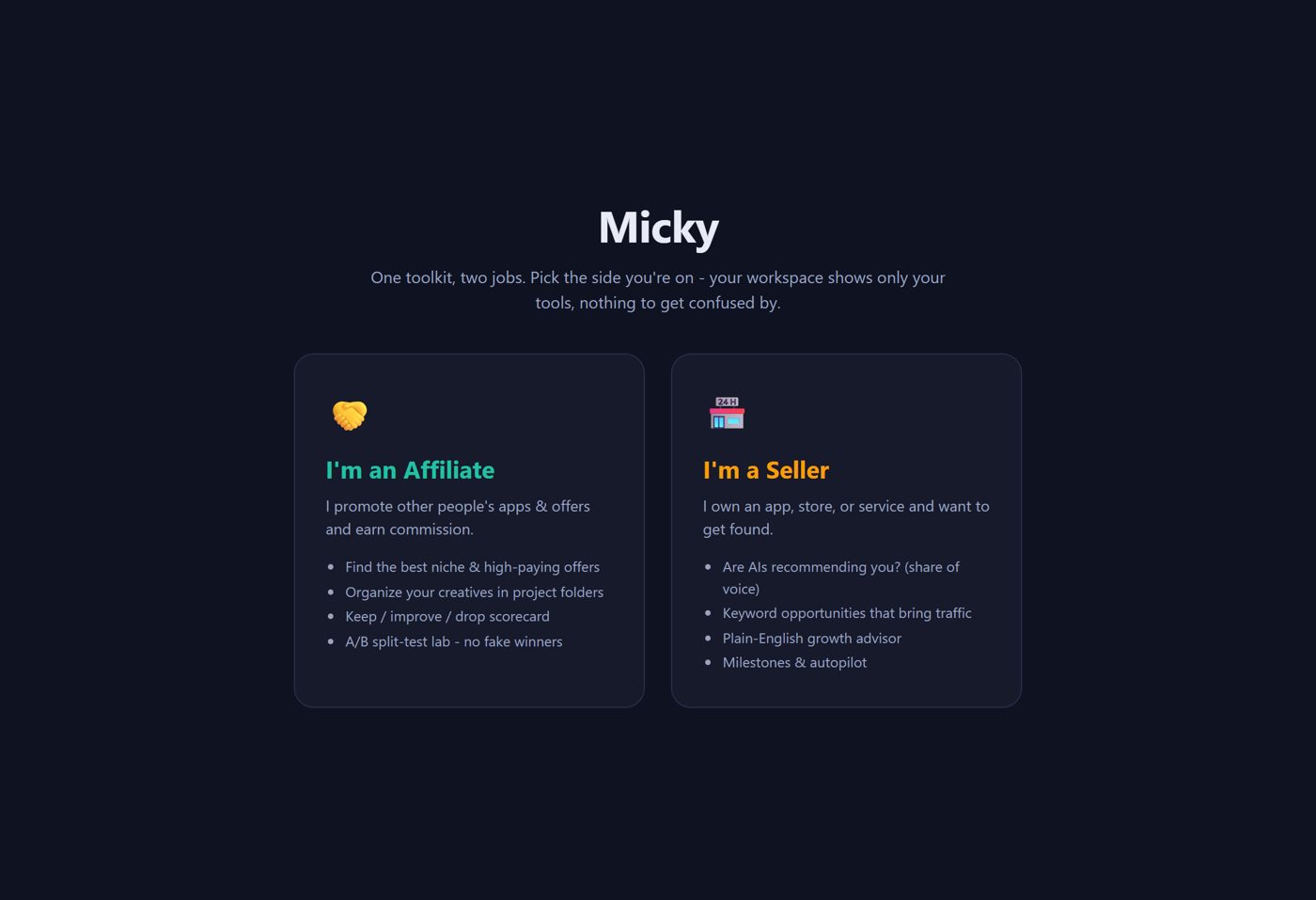
When Micky opens you'll see two cards:
- - 🤝 I'm an Affiliate - you earn commission promoting other people's apps and offers.
- - 🏪 I'm a Seller - you own something and want more traffic and sales.
Click your card to enter that workspace. You can switch anytime with ← Switch role at the top left. Nothing you do in one side leaks into the other.
2. The one promise: it never sends on its own
Micky does the heavy lifting - measuring, researching, drafting, scoring - automatically. But anything that would go out into the world (a published article, an outreach message) is never sent by the machine. On the Seller side it's prepared and placed in your Review Queue, where you approve or reject it with one click. On the Affiliate side Micky writes, builds pages and makes links, and you post them yourself.
3. Seller side - get found & get traffic
🔬 Market Research
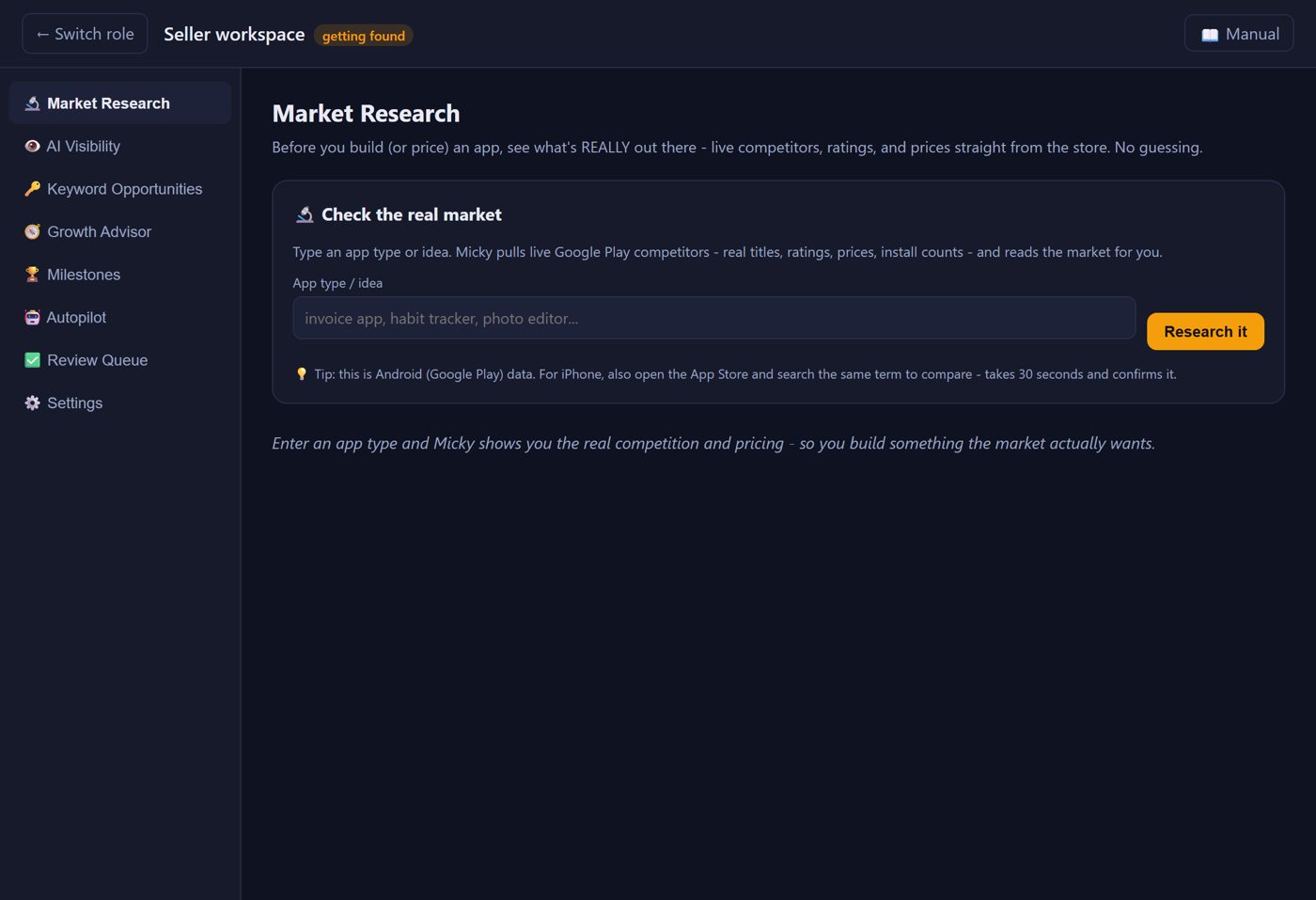
Top sellers in this niche groups your Google Play results by developer, so you can see who owns the biggest apps. 📈 See what's selling opens the real charts in your web browser: Amazon Best Sellers and Movers & Shakers, the Microsoft Store, Apple and Google Play, plus free tools that estimate sales. Store charts are real rankings but don't show dollars; sales and revenue figures on other sites are estimates. The Amazon links are also in the Offer Finder.
Before you build or price anything, see what's really out there. Type your app type or idea and Micky pulls live Google Play competitors - real titles, ratings, prices, and install counts - then reads the market for you in plain English (is it crowded? what do people actually pay? where's the gap?). No guessing, no made-up numbers. - This is honest data straight from the source.
👁️ AI Visibility
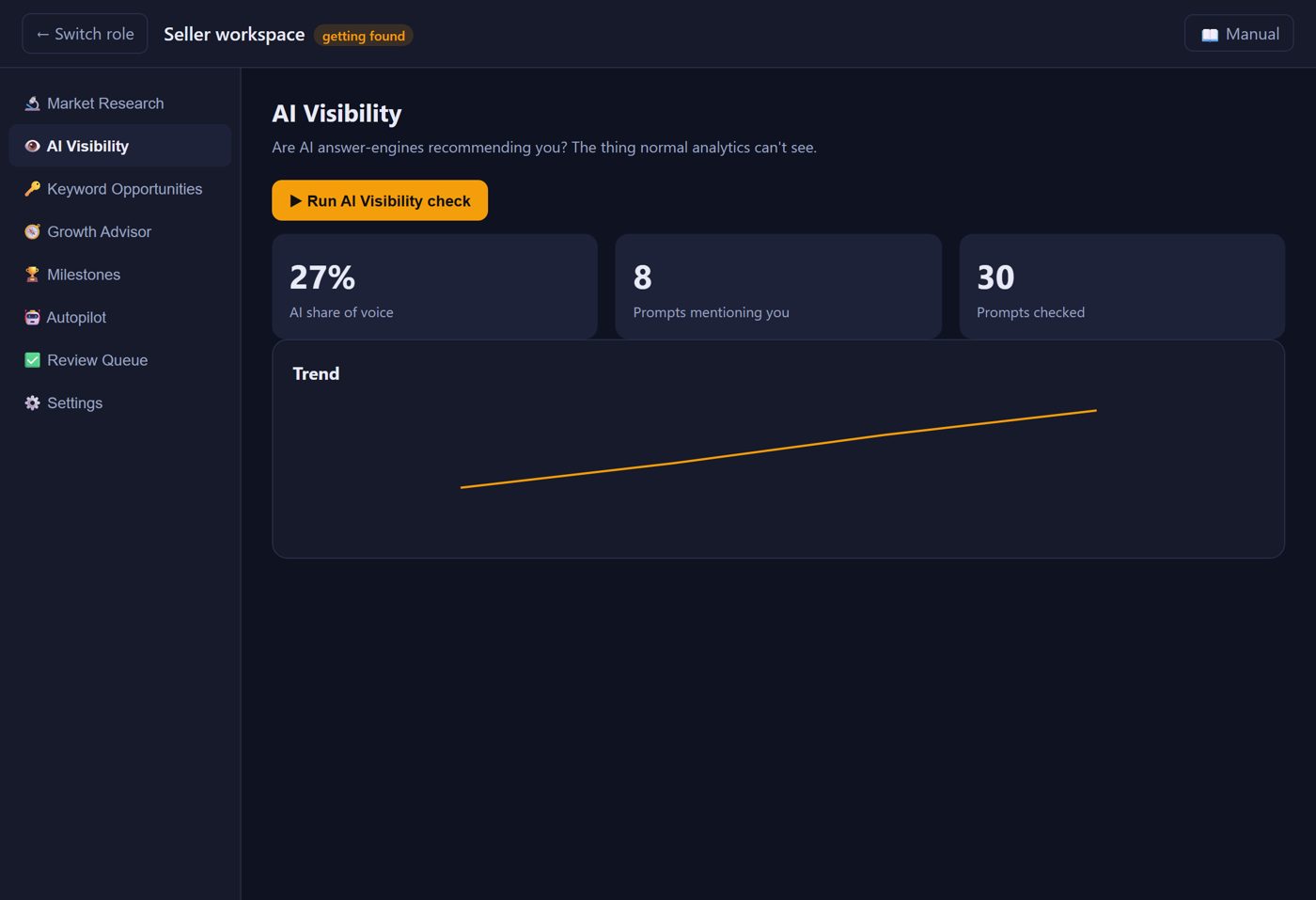
Answers the question normal analytics can't: are AI assistants (ChatGPT, Perplexity, etc.) recommending you? Click Run AI Visibility check. It asks buyer-style questions about your niche ("what's the best ___?") and measures how often your brand shows up - your Share of Voice. Run it every few weeks to watch the trend line climb.
🔑 Keyword Opportunities
Pulls your real Google Search Console data and highlights near-miss keywords - terms you already rank on page 2 for. These are your fastest traffic wins: a small content push moves them to page 1. Import it in four steps shown on the screen: in Search Console open Performance, set Last 3 months, click Export → Download CSV, then pick that ZIP in Micky and click Import. Nothing is uploaded. Import a fresh report every few weeks.
🧭 Growth Advisor
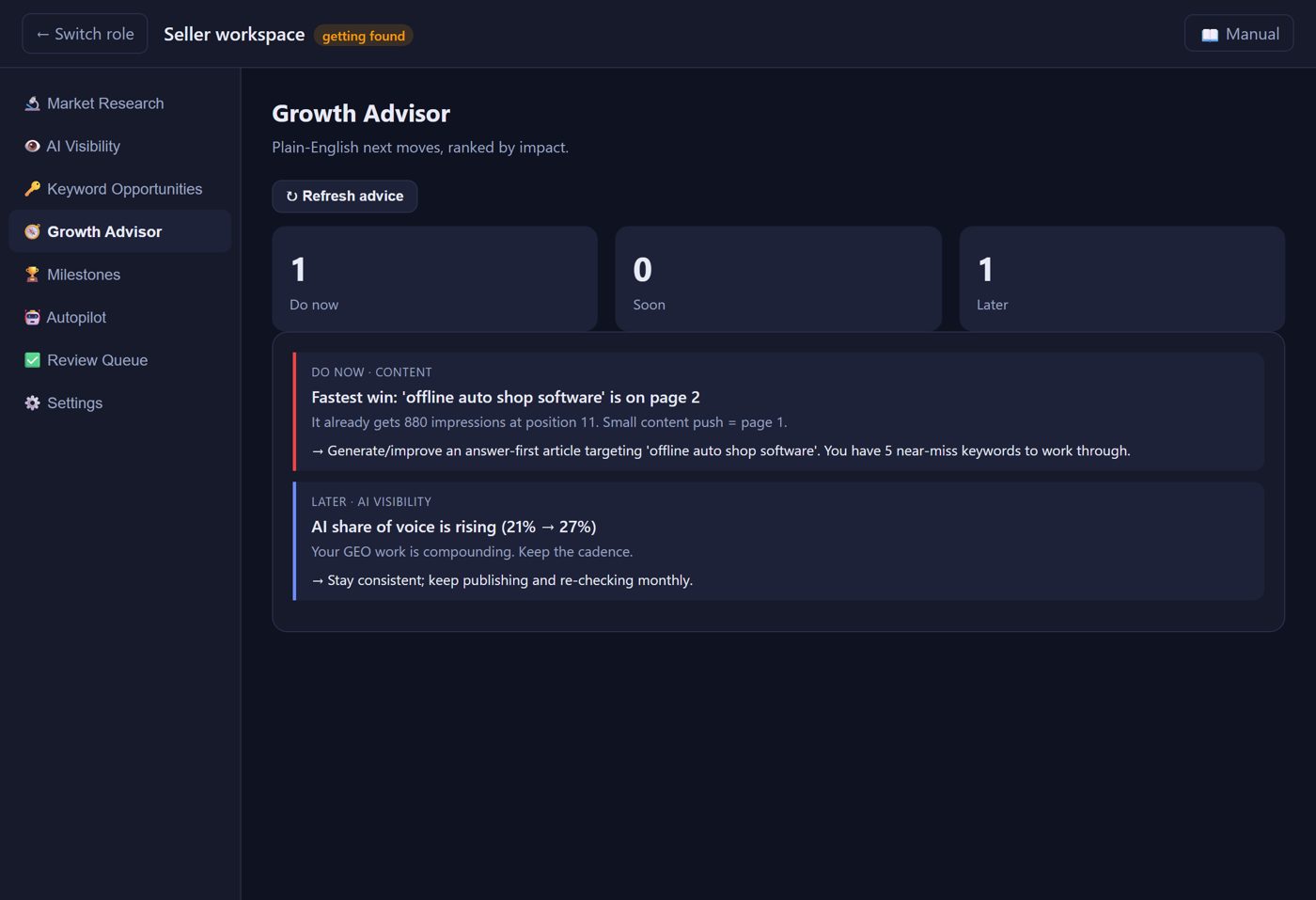
Turns all your data into a plain-English, prioritized to-do list: Do now, Soon, Later - each with why it matters and the exact next action. It's honest when you're behind and honest about what's normal for a new site.
🏆 Milestones
Rewards for real progress (first AI mention, 25% share of voice, first page-1 keyword, publishing streaks…) plus a simple traffic-light: 🟢 above your target, 🟡 on track, 🔴 below your mark - do more. Badges only unlock on genuine progress; no fake hype.
🤖 Autopilot
Runs the safe work in one click: checks your AI visibility (if you've added an AI key and your brand + niche in Settings), queues article drafts for your best near-miss keywords from your imported Search Console report, and refreshes your advice and milestones. Drafts go to the Review Queue. See the run history here.
4. Affiliate side - find & sell the best offers
The affiliate workspace walks you from finding a good offer, to creating content, to tracking what earns. The menu groups the tools the same way this section does: Find, Make, Post, Track and Help, with Settings at the bottom.
📊 Dashboard
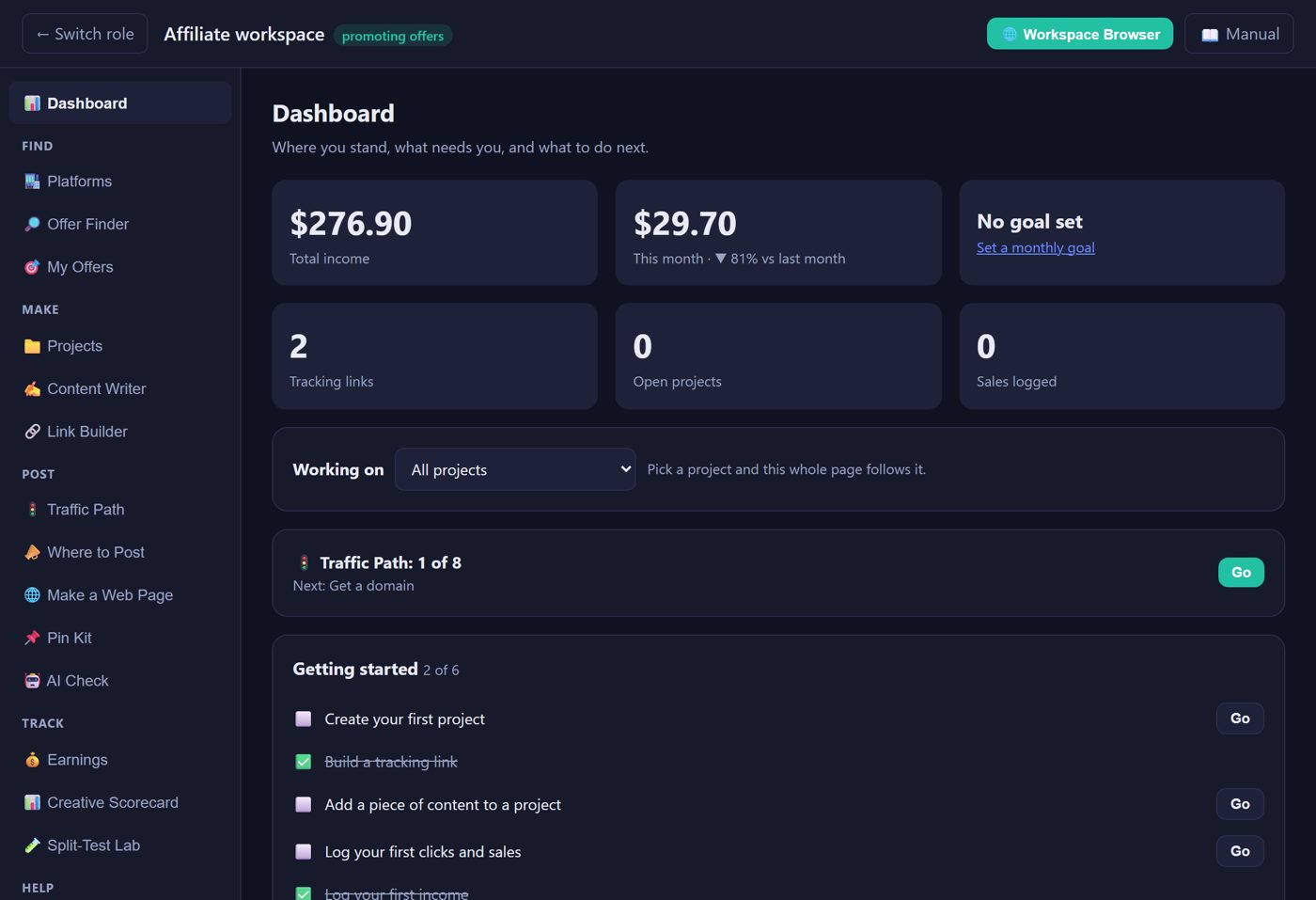
Your dashboard answers four questions: how am I doing, what needs my attention, what should I do next, and how do I get there in one click. It shows your income, this month against last month, progress toward your monthly goal, your next step, anything that needs you, what's working, and recent activity. New users get a Getting started checklist that disappears once it's done. Pick a project under Working on and the whole page follows it. When you log income, choose its project so it counts there.
Find - pick what to promote
🏬 Platforms
The affiliate networks you can join, grouped by what they sell. Open one for four short steps: join, find what's selling, make your link, and paste what you found. Your link is kept exactly as the platform made it, and 📋 Copy my link in My Offers gives it back. What you add flows into My Offers, Matchmaking and the Offer Finder. Micky never signs in for you. Platforms change their sites, so the steps were last checked November 2026.
🔎 Offer Finder
💰 Offers that pay comes first because those marketplaces only list things you can earn from. Popular right now is for spotting trends, and popular doesn't mean it pays. 📱 Find hot apps looks up a kind of app on Google Play, biggest first. Most apps don't pay affiliates, so 💵 Does it pay? searches for its affiliate program before you add it to My Offers. In the Workspace Browser's Find Apps, the marketplace and best-seller buttons open right there, and + Add this to My Offers saves the page you're on so Matchmaking can rank it.
Micky doesn't search the affiliate networks for you. Use 💰 Offers that pay to open ClickBank, Digistore24, Awin, Impact and others, add the offers you like to My Offers, then compare them here, filtered to the sweet spot by default: solid commission %, a long-enough cookie window, trending offers. Adjust the price range, commission, cookie length, niche, and which sources it scopes - then it ranks offers by an honest opportunity score. Until you add your own, it shows practice offers (made-up examples, marked PRACTICE) so you can learn how to compare offers. Add the real offers you find on your networks under Your offers (name, price, commission, cookie days from the listing) and the finder and Matchmaking rank yours instead. Micky doesn't connect to network accounts; you copy the numbers in.
🎯 My Offers
The offers you promote. Click + Add a real offer and enter the numbers from the offer's listing, or send one here from Matchmaking. Focus one and the Workspace Browser centers on it. Make project gives an offer its own project with folders, content and results. Your apps and other projects stay in Projects, not here.
Each offer shows its commission and when you last checked it. Networks can cut rates without notice, so Micky reminds you every 90 days and keeps the rate you started with. Rank my offers opens Matchmaking.
🤝 Matchmaking
Matchmaking isn't in the menu. Open it with 🤝 Rank my offers in My Offers, or from the message after you add an offer.
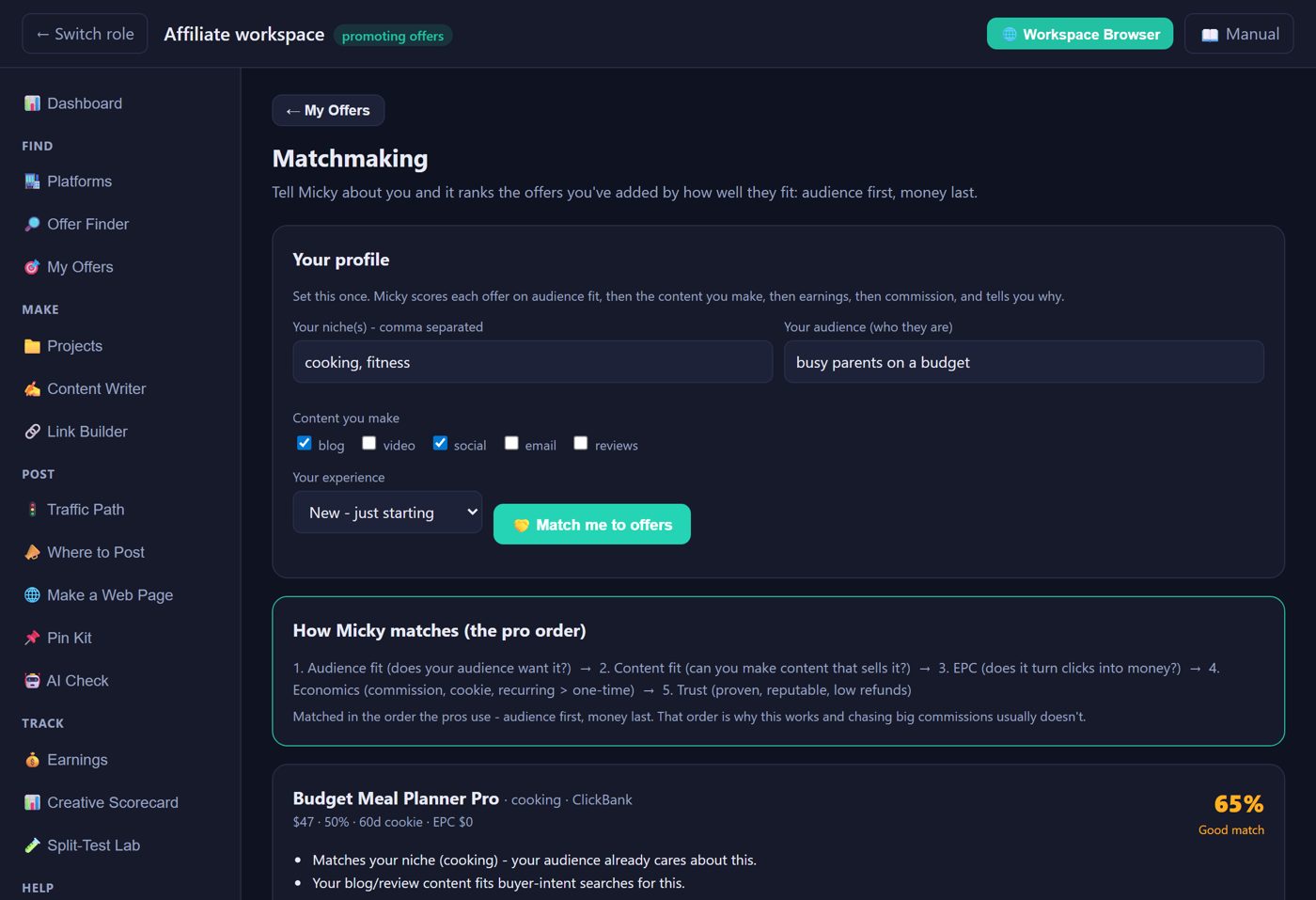
The shortcut past months of trial and error. Tell Micky about you - your niche, your audience, the content you make, your experience - and it matches you to the right offers, scored and ranked, each with a plain-English why. Crucially, it uses the order the pros use: audience fit first, then content fit, then earnings data, then commission. Chasing the biggest commission is the #1 beginner mistake; this does it right. It matches against Your offers from the Offer Finder (practice offers until you add your own).
Make - get your project, writing and links ready
📁 Projects
A project is anything you're working on to make money, with everything about it in one place. Projects are on both the Affiliate and Seller sides. Click + New project, then choose:
- Start new (Micky makes the folders) or bring in a folder you already have (nothing in it gets moved or changed).
- Type: App I'm selling, or Offer I'm promoting. Each starts with folders that fit it, and you can add, rename or remove your own.
- Category: your own label, so you can filter your list.
- Status: New, Active, Paused or Finished. Finished projects stay saved but drop off your list until you tick Show finished.
Click Open to see a project's folders, content, links, results and notes, and use 📂 Open folder to see its files. + Add content can attach a file, which puts a copy in the folder you pick. Remove only takes a project off your list: its folder and files stay on your PC. A folder can only be removed from here once it's empty.
Click Work on this and your Dashboard, Content Writer, Link Builder and Workspace Browser all follow that project.
✍️ Content Writer
Write ready-to-paste promos for any offer - posts, emails, video scripts, honest reviews. Enter the offer, pick the kind of content and press Write it.
Give it the facts. The AI only knows what you tell it, so fill in What it does / key facts. Micky remembers them for your current project. Without facts it leaves [brackets] where a real detail belongs.
Keep what it writes. With a key, click 💾 Save to project. Using your AI chat, click the AI's copy icon, then 💾 Save what I copied at the top of the Workspace Browser. The writing goes in your project's posts folder and its content list. Then build a tracking link, post both, and log your clicks and sales.
No key (free): Micky gives you finished writing instructions (your offer, angle, audience and its honesty rules). Press Copy the instructions, paste them into ChatGPT, Gemini or Qwen (all three are in the Workspace Browser) and send. With your own AI key in Settings, Micky writes it right here instead.
🔗 Link Builder
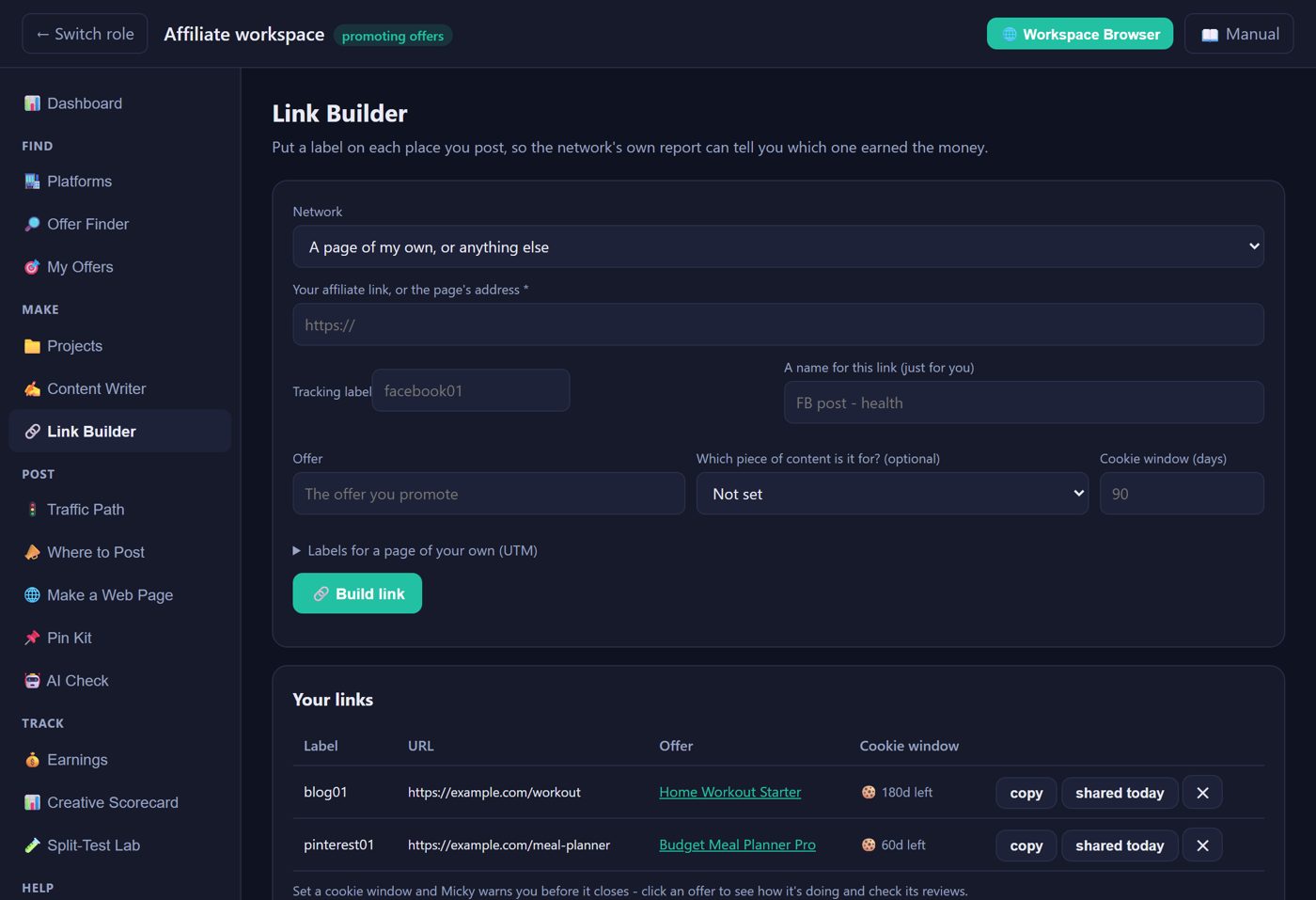
Build clean tracking links (UTM tags) for every campaign so you know what converts. Set a cookie window (from the offer's listing) and each link shows how long clicks from your last post can still earn you commission, counted from the last time you shared it (click shared today when you post it again). It shows its status at a glance - active, closing soon, or expired - so a commission never slips away because a window quietly lapsed. Click an offer to see how it's doing and check its current reviews.
Tracking labels. Pick your network and give each place you post its own label, like facebook01. On ClickBank, Awin and CJ, Micky adds the label to your link. Everywhere else your link stays exactly as the network made it, and the screen tells you where that network wants the label set. Amazon links are never changed: choose your Tracking ID in SiteStripe, and Micky reads it from the link. UTM labels are only for pages of your own, because they show in that site's analytics, not in a network's report.
Post - put it in front of people
🚦 Traffic Path
Micky helps you drive traffic if you do these steps. The Traffic Path puts them in order and ticks them off: get a domain, set up hosting, build your blog, put it online, get on Google, post on Pinterest, see if AI names you, and log what happened. Cloudflare and Google steps open the real pages; you sign in and click yourself. Get on Google lists your sitemap and every page address to request indexing for. Google limits requests and doesn't guarantee indexing. Nobody can promise you visitors.
Use an AI coder. An AI coder is a separate subscription of about $20 a month and is optional. Pick a job (put my site online, connect my domain, set up Google, add an email sign-up, check my site) and Micky copies instructions to paste into it, with your folder, your pages and firm rules: never change an affiliate link, keep every disclosure, never ask you for a password in chat.
📣 Where to Post
Every place an affiliate might post, marked Allowed, With limits, Not confirmed or Not allowed, for the network you pick. It also shows that network's rules and your disclosure wording, ready to copy. If a site's rules don't mention affiliate links, it says Not confirmed rather than guessing. Rules change, so check the site before relying on it. Micky never posts for you.
🌐 Make a Web Page
To drive your own traffic you need your own domain and a host. Micky can't sell you those, but it makes the pages, on your PC, with no AI and nothing sent anywhere. Paste your writing or pick a piece saved in a project, add your link, and save. Then choose Save as one HTML file, Copy for Blogger (paste into Blogger's HTML view), or Build my site folder for a whole site with a home page, About, Disclosure and Privacy. The upload steps are on the screen. It warns you about short pages, blanks left unfilled, and prices shown on Amazon pages. My record lists every page, how long it has been up, and the product's price over time; look prices up every couple of months and fix any page that's out of date. Ranking can take a few weeks to a year per product, so build many. You write the About text yourself; Micky won't make it up.
📌 Pin Kit
Pick a page and Micky makes a 1000 x 1500 pin image on your PC, from your own photo or as a text graphic, plus the title, description with disclosure, and link to copy. You post it on Pinterest yourself. Use your own photo: don't download Amazon's product photos or copy its descriptions.
🤖 AI Check
Ask an AI a question a buyer would ask, paste the answer back, and Micky checks whether it named your site and the product. Free, no key. Answers vary from try to try, and new sites usually don't appear for a while.
Track - see what earns
💰 Earnings
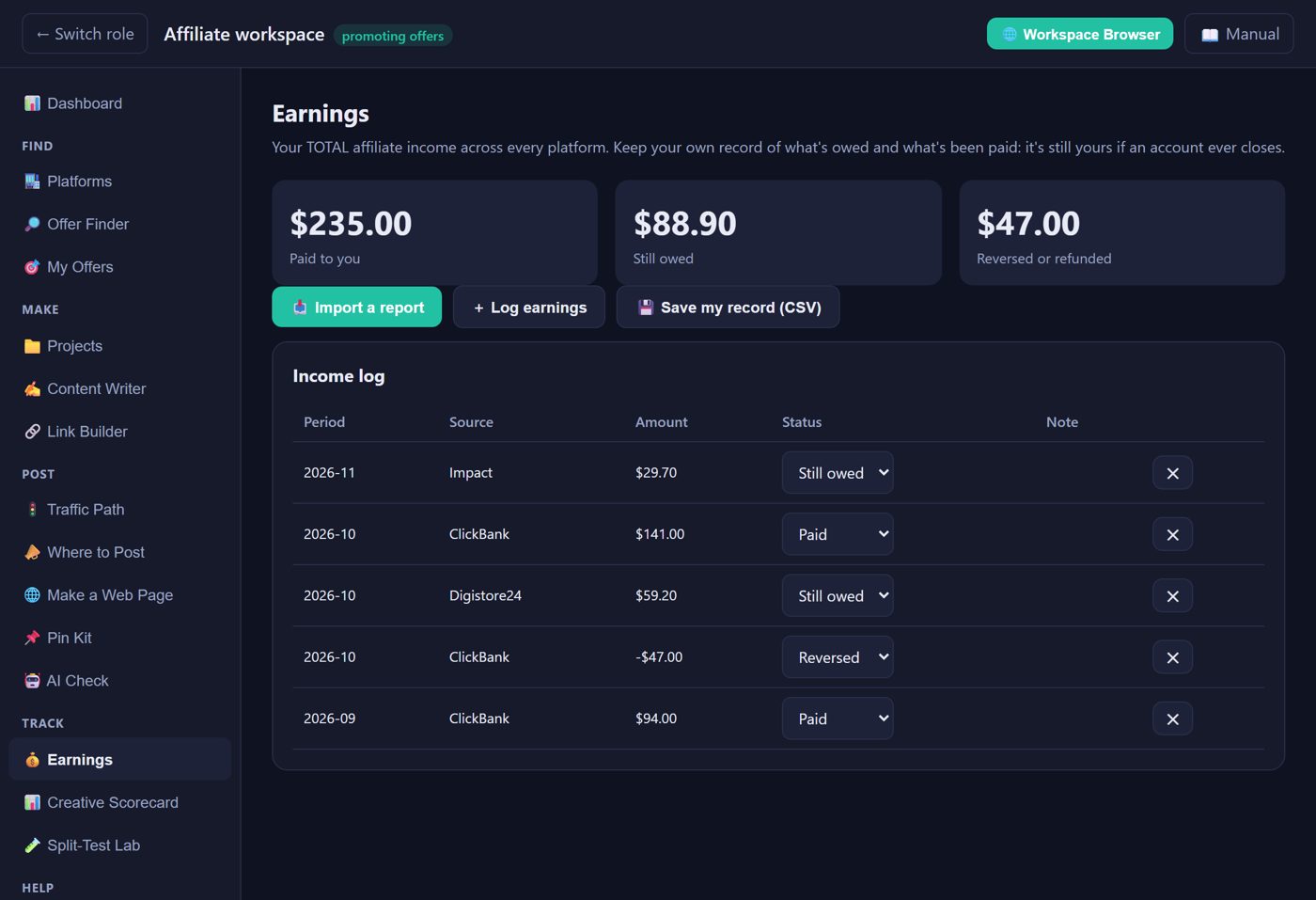
Keep your own record of what you earn on any platform. It stays yours even if a network account closes. Three totals sit at the top: Paid to you, Still owed, and Reversed or refunded.
- 📥 Import a report reads a CSV you downloaded from a network (see the next section).
- + Log earnings adds one entry by hand: the source, the amount, the month, its status (Paid to me, Still owed or Reversed), an optional project and a note.
- Change any entry's status in the Income log when a network pays you or reverses a sale. Entries you typed in can be deleted with ✕; imported ones are removed with Undo.
- 💾 Save my record (CSV) saves the whole log as a spreadsheet file.
Your Dashboard charts and monthly goal use these figures. Micky doesn't connect to network accounts, so nothing fills in by itself: you import or type it.
📥 Importing a report
On Earnings, click Import a report, name the network and pick the CSV you downloaded from it. Micky guesses the columns; fix any that are wrong and compare the total with the network's own report before you click Import. Importing the same or an overlapping report never counts a sale twice, and if a sale has gone from pending to paid the status updates. Connect tracking labels to your content and the Scorecard fills in. Undo removes a whole import.
📊 Creative Scorecard
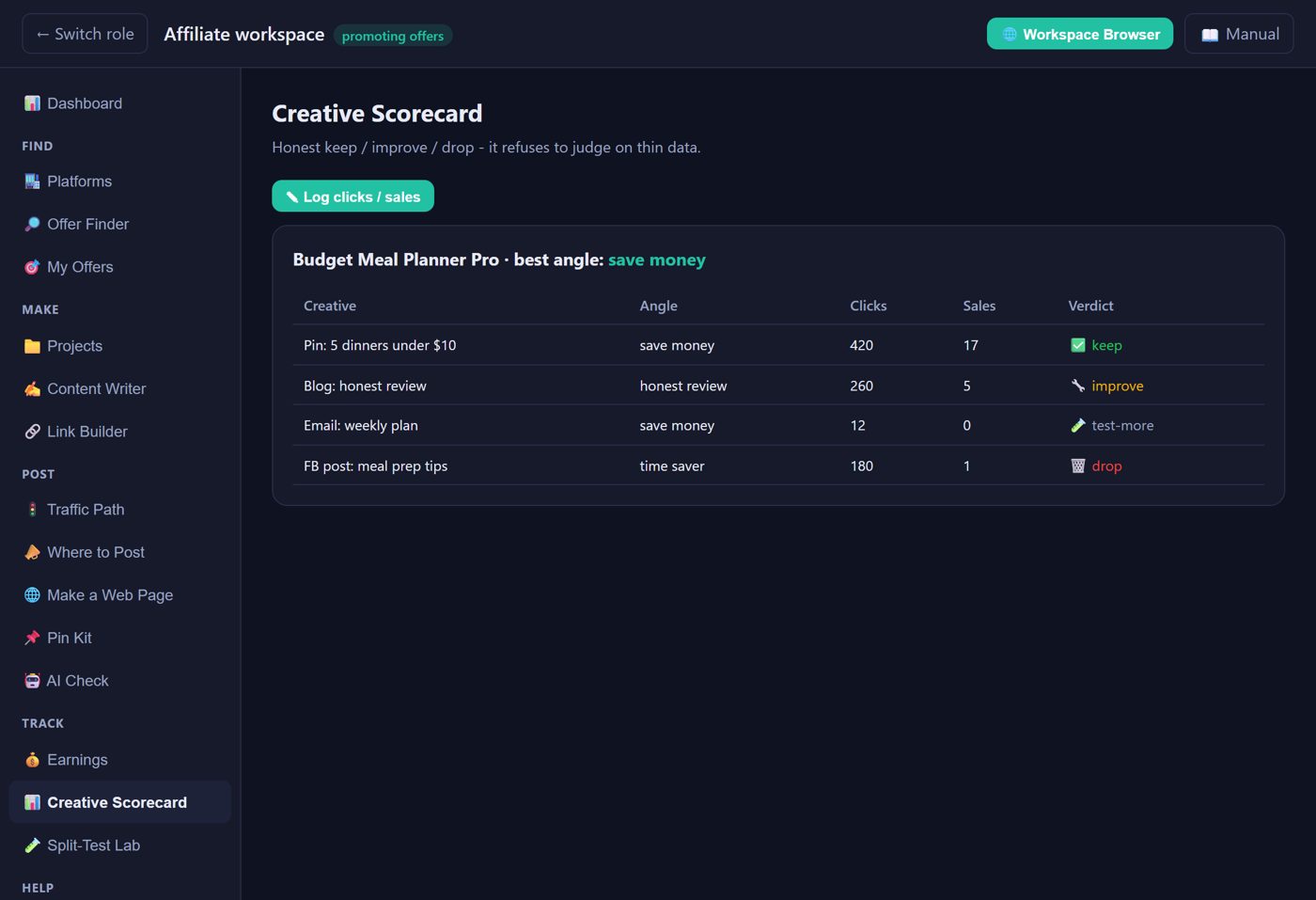
The honest "what's working" board. Log clicks and sales per creative (✎ Log clicks / sales) and each one gets a verdict:
| Verdict | Meaning |
|---|---|
| ✅ Keep | Converting well (about 3%+). Do more like this. |
| 🔧 Improve | Works but soft (about 1-3%). Try a stronger angle or thumbnail. |
| 🗑️ Drop | Under 1% after real traffic. Stop spending effort here. |
| 🧪 Test-more | Too few clicks to judge yet - it refuses to guess. |
It also surfaces your best-converting angle across all creatives - the insight no affiliate network gives you.
🧪 Split-Test Lab
The pro discipline: test two versions small, keep the winner. Two tools:
- 🧮 Plan a test - before you start, it tells you how big a sample you need so you don't call a winner too early (the #1 mistake). Small list? It shows how testing for a bigger win needs far fewer clicks.
- + New split test - enter your Control and Challenger numbers. It gives a clear verdict: 🏆 winner, ✅ control holds, 🤝 no real difference, or 🧪 keep testing. Save it to your ledger to track every experiment.
Help - when you're stuck
🧭 Affiliate Coach
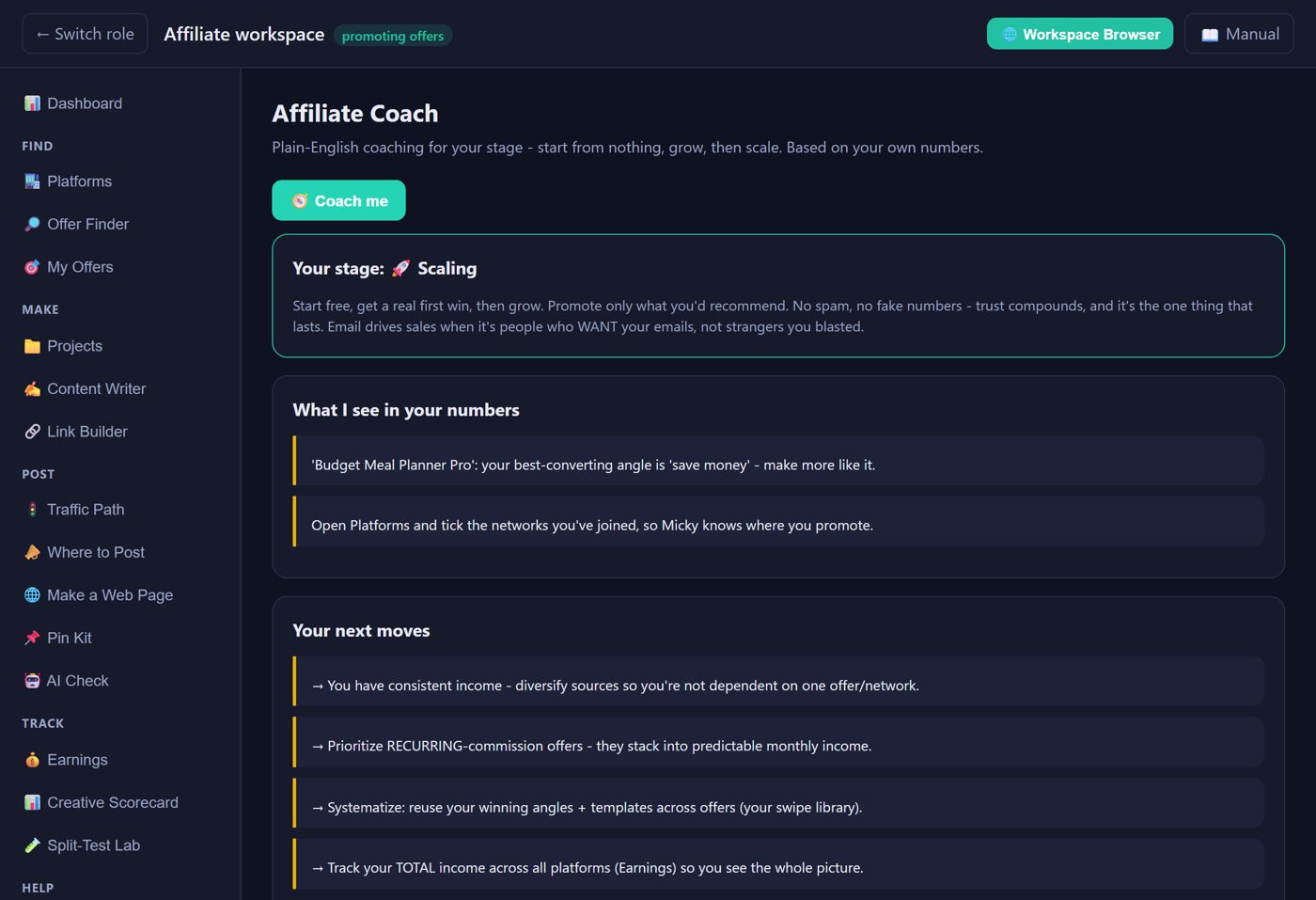
Not sure what to do next? The Coach gives staged, plain-English guidance tailored to where you are - starting out, growing, or scaling. It teaches the real workflow the pros use, honestly (no get-rich-quick promises), so even if you never touch the coach again, you've learned the method.
5. The Workspace Browser
The Workspace Browser is a separate window where you do the hands-on work: sign in to your networks and AI chats, write, and research. Open it with 🌐 Workspace Browser at the top of Micky. Buttons like Open my AI writer, Promote in Workspace Browser and a platform's Open button open it on the right page.
- Two sides. The dropdown at the top switches between Promote apps (Affiliate) and Sell my app (Developer). Each side has its own job buttons, such as Find Apps, Text, Image, Video, Publish, Drive Traffic and SEO for affiliates, or App Idea, Name, Icon, Where to Sell and Store Listing for developers.
- Experience level. Guided walks you through one step at a time, Hybrid groups the tools with coaching when you want it, and Pro shows every tool with no coaching. Switch anytime at the top or in its Settings.
- 💾 Save what I copied. Click the AI's copy icon, then this button. The writing goes into your current project's posts folder and its content list.
- + Add this to My Offers (in Find Apps) saves the page you're looking at as an offer, so Matchmaking can rank it.
- Open my AI writer puts your writing instructions into the AI's message box. It only fills the box: you press send.
- Spelling. Right-click a misspelled word for suggestions.
- Back and Forward → move through pages; ⌂ Start returns to the start screen.
- Settings (in the browser): light or dark, window size, which AI or site each job opens (Save my links), Clear cache (keep logins) and Deep clean (logs you out).
You sign in to every site yourself. Micky never types your passwords and never posts or sends anything for you.
6. The Review Queue - Seller side
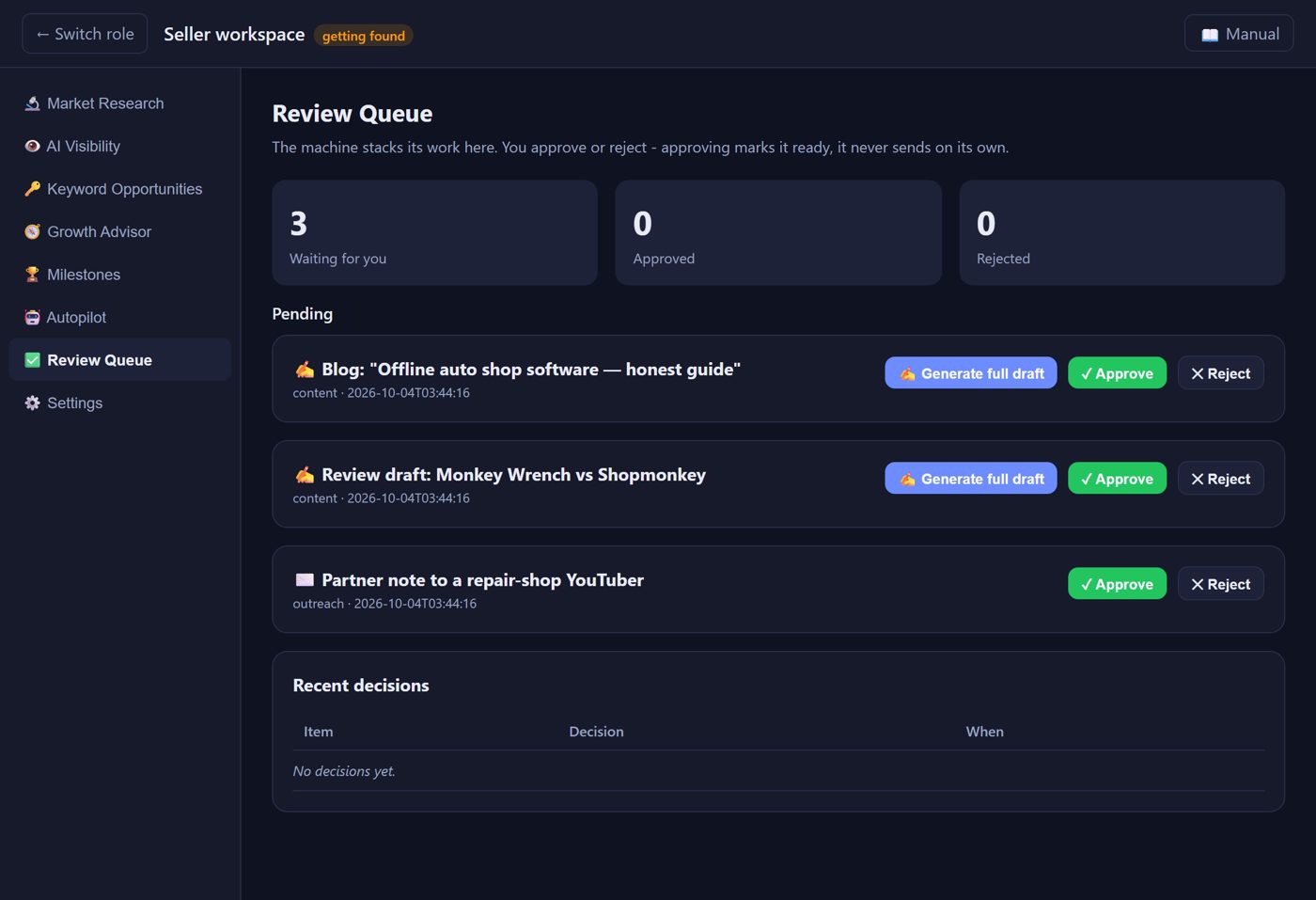
This is where the machine stacks everything it prepared for you. Each item shows what it is, a preview, and two buttons:
- ✓ Approve - marks it ready. (It still doesn't send on its own - you publish/send deliberately.)
- ✕ Reject - discards it.
Your decisions are logged in Recent decisions. Think of it as a two-minute morning review: the work's already done, you just say yes or no.
The Review Queue is on the Seller side only, where Autopilot fills it. Affiliate writing goes straight into your projects instead.
7. Settings & your API key
Both workspaces have these sections: Profile (your name and which workspace opens first), Goals (monthly goal and currency), Link defaults (filled in for you in the Link Builder), AI (optional keys), Appearance (light or dark, text size), Workspace Browser (favorite AI, coaching level), My data (open your folders, back up, restore, start over) and About. A backup holds your settings, history and project lists; your project files stay where they are. Start over saves a backup first and leaves your license and project files alone.
On the Seller side you also set your brand terms, niche, competitors, site URL, and target share of voice. You can also add one AI API key:
- Perplexity (recommended - it searches the live web, closest to real AI-search visibility)
- OpenAI (alternative)
- Local LLM URL (free, for testing the pipeline)
8. Putting it on autopilot
You can run everything by hand, or let it run itself. Click ▶ Run autopilot now whenever you sit down to work (once a week is plenty) and a fresh batch of drafts and updated numbers is waiting for your review. Even on autopilot, the promise holds: it measures, researches, and drafts automatically - but publishing and outreach always wait for your approval in the Review Queue.
9. FAQ & troubleshooting
Do I need a GPU or a powerful PC?
No. Micky's tools are lightweight. The AI steps (the visibility check, the content writer) run in your API provider's cloud on your own key - nothing heavy runs on your machine.
Do I need an API key to use it?
No key is required to start. Market Research (live competitor data), the Offer Finder, Link Builder, Matchmaking, Scorecard, Split-Test Lab and the Dashboard all work with no key. A key only makes the writing and the visibility check one-click. Without one you do those in ChatGPT, Gemini, Qwen or Google AI yourself, free, and Micky checks or saves the results. When you do add a key, it's your key, on your machine, billing your account.
Will it email people or post for me automatically?
No - never. That's the core design promise. It drafts; you approve; you send.
The AI Visibility check says "no API key."
That's fine. It opens the ✋ Free check: ask each question in ChatGPT, Google AI Mode, Perplexity or Gemini, paste the answers, and Micky scores them. Or add a key in Settings to do it in one click.
"Generate full draft" (Review Queue) asks me to write it in my AI chat.
That's the no-key way. Copy the instructions, paste them into ChatGPT, Gemini or Qwen, then paste the finished article back. Micky cleans it up the same way and saves it to your Review Queue.
Keyword Opportunities is empty.
Import your Search Console Performance report (the 4 steps on that screen). New sites also simply have little data at first - it fills in over a few weeks as traffic grows.
My share of voice is 0%.
Normal for a new brand - AI models take weeks-to-months to learn about you. Publish answer-first content on your near-miss keywords and re-check. The Advisor will guide you.
Where is my data stored?
All on your own computer. Nothing is uploaded except the AI questions you choose to run through your own API key.