
Cutout
Product Photo Tool, User Manual
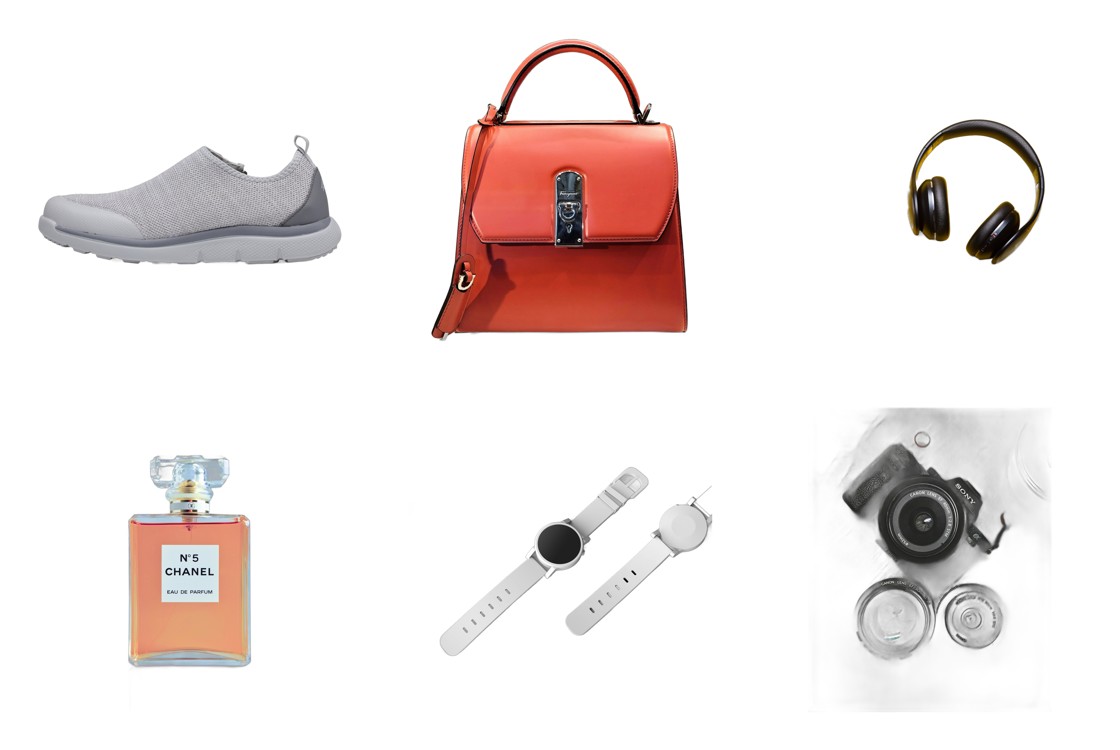
Cutout turns a folder of phone photos into a marketplace-ready product catalog in one click. It removes backgrounds, places your product on a clean backdrop, sizes each image for the marketplace you sell on, adds badges and your logo, and exports everything ready to upload. Works 100% offline. No monthly fees.
1. Getting started
Double-click Cutout to open it. It runs in its own window, no internet needed. Your photos never leave your computer.
2. Loading your photos
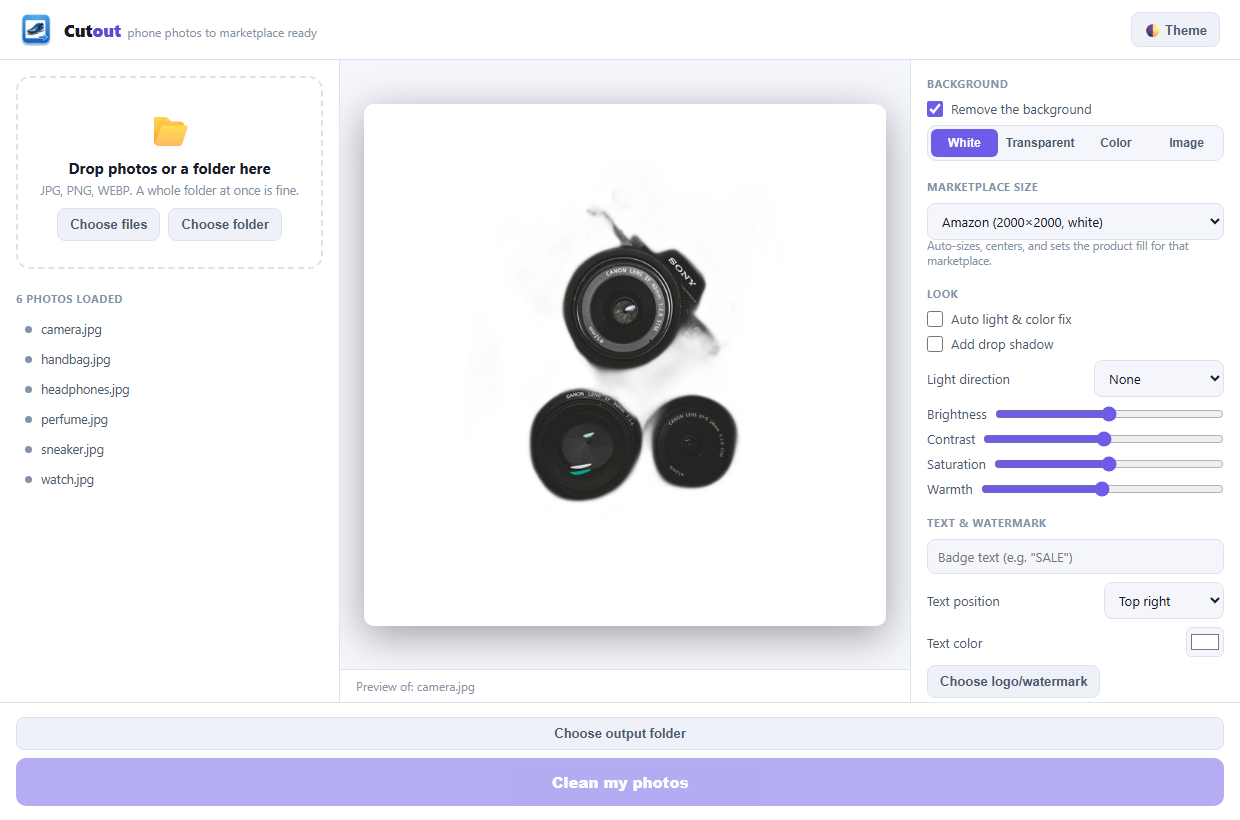
Drag a folder or a pile of photos right onto the window, or click Choose files / Choose folder. Everything loads into the list on the left. Click any photo to preview it.
Then click Choose output folder to pick where the finished images go.
3. Background: white, color, or your own
Under Background, keep Remove the background on, then choose:
- White, the clean marketplace standard.
- Transparent, a PNG with no background (drop it into anything later).
- Color, any solid color you pick.
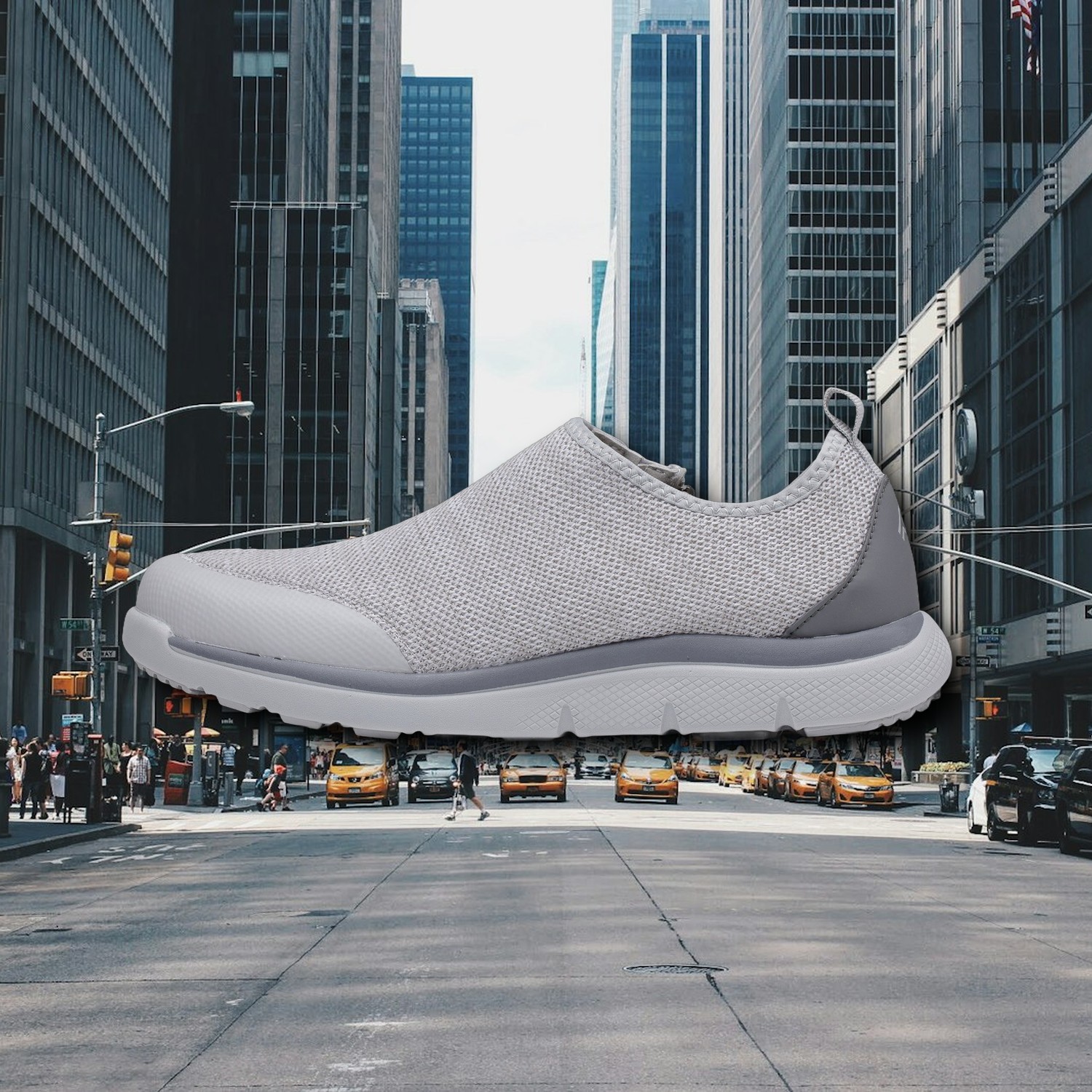
- Image, drop your product onto your own backdrop. Choose a single image, or point at a folder of backdrops (wood, marble, a city street) and pick one from the thumbnails.
4. Marketplace sizes
Pick your marketplace under Marketplace size and Cutout sizes, centers, and fills every photo to that platform's published photo guidelines, so your whole catalog comes out uniform. Choose Keep original size if you just want the cutout.
| Preset | Size | Notes |
|---|---|---|
| Amazon | 2000 × 2000 | Pure white background; product fills 85%+ of the frame |
| Walmart | 2200 × 2200 | Pure white background; kept under 5 MB |
| eBay | 1600 × 1600 | White recommended (not required) |
| Etsy | 2000 × 2000 | Kept under 1 MB so uploads finish |
| Shopify | 2048 × 2048 | |
| Google Shopping | 1500 × 1500 | |
| Poshmark · Mercari | 1080 × 1080 | Square |
| Facebook Marketplace | 1200 × 1200 | Square |
| Depop | 1280 × 1280 | Square |
| Vinted | 1080 × 1350 | Portrait 4:5 |
| Instagram post | 1080 × 1350 | Portrait 4:5, the feed's standard |
| Instagram story | 1080 × 1920 | Product kept clear of the top and bottom |
| Pinterest pin | 1000 × 1500 | 2:3 |
| Wide banner · Square | 1500 × 500 · 1500 × 1500 | General use (Square saves as PNG) |
5. Marketplace photo rules & the Amazon-ready check
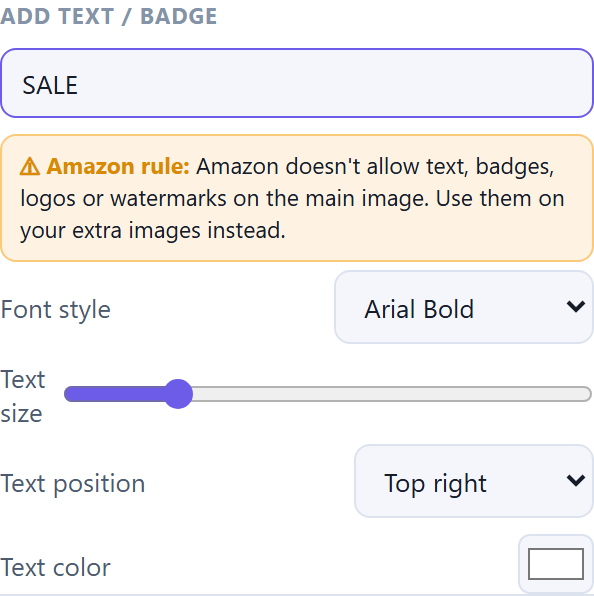
Some marketplaces are strict about photos, and a main image that breaks a rule can be rejected or hidden from search. Cutout knows the strict ones. When a setting would break the rule for the marketplace you picked, an amber notice appears right next to that setting and tells you why.
It's a notice, not a lock. The same photo might be headed for an extra image slot or your own store, where text and logos are fine, so Cutout tells you and lets you decide.
| Marketplace | Background | Text & badges | Logos & watermarks | Applies to |
|---|---|---|---|---|
| Amazon | Pure white (RGB 255, 255, 255) | Not allowed | Not allowed | Main image |
| Walmart | Pure white (RGB 255, 255, 255) | Not allowed | Not allowed | Main image |
| eBay | White recommended | Not allowed | Not allowed | All photos |
| Google Shopping | Your choice | No promotional text | Not allowed | All images |
| Vinted | Your choice | Allowed | No watermarks | All photos |
The other presets have no strict photo rules, so no notices appear for them.
The Amazon-ready check
In Canvas mode, click ✓ Amazon-ready? to test the image before you upload it. Cutout checks that:
- the background is exact pure white (RGB 255, 255, 255),
- the product's longest side spans at least 85% of the frame,
- the image is at least 1000 pixels and square,
- there are no text or logo layers on it.
Each line shows a ✓ or ✗, and anything that fails comes with the fix.
6. Look: enhance, shadow, lighting
- Auto light & color fix, evens out phone-photo lighting across the batch.
- Add drop shadow, grounds the product so it doesn't look like it's floating.
- Light direction, adds a soft studio light from the left, right, or top.
- Brightness, Contrast, Saturation, Warmth, fine-tune the whole batch.
7. Badges, text, and watermark
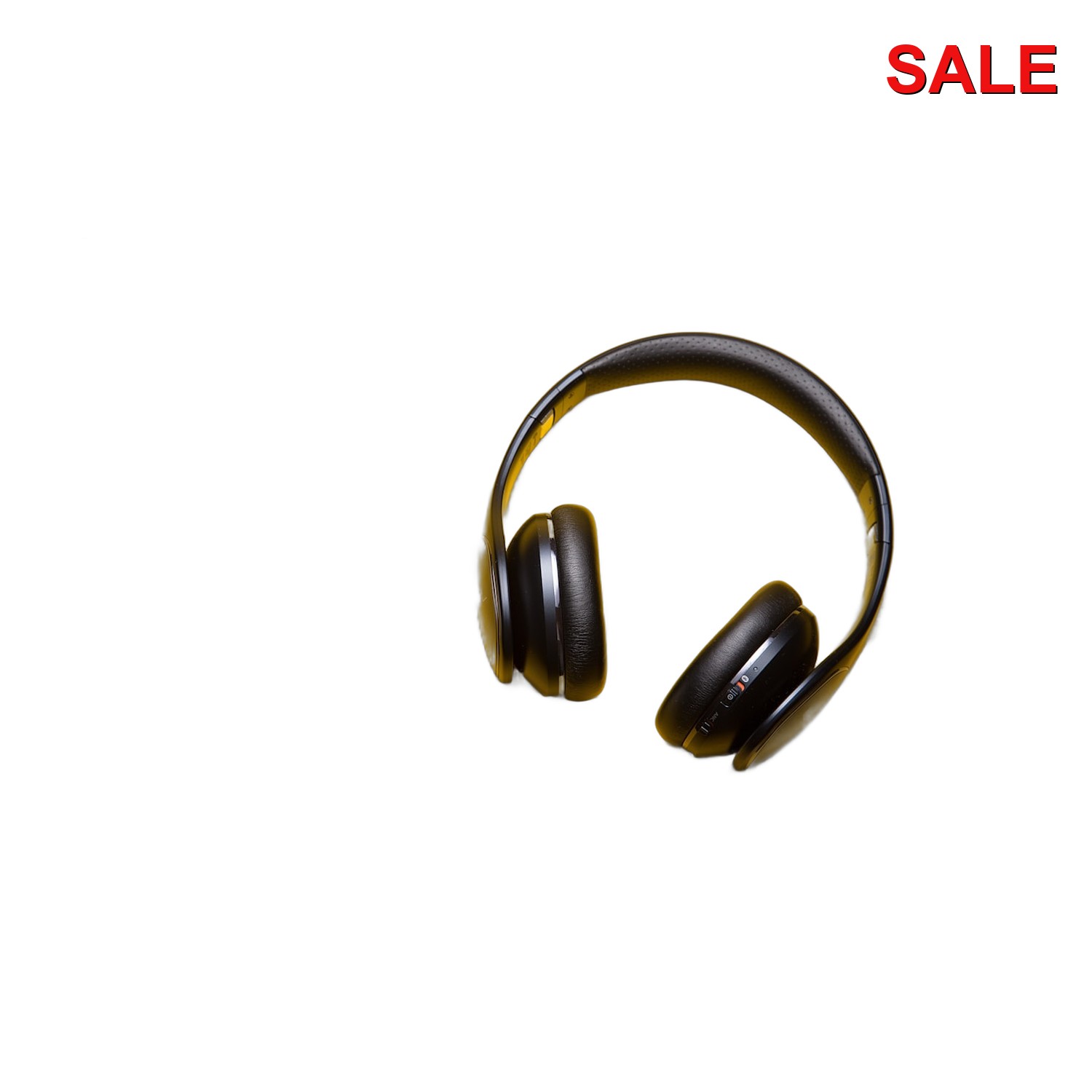
Type a badge like "SALE", "NEW", a price, or a SKU, and pick its position and color. Choose your logo or watermark image and set its opacity. Both are applied to the whole batch at once.
8. Cleaning your photos
When you're happy with the preview, click Clean my photos. A progress bar shows each image as it finishes, and Cutout opens your output folder when it's done. Files are named for easy upload (turn on a rename pattern if you like).
9. Tips for the best results
- Good, even light and a plain-ish surface give the cleanest cutouts.
- Very fuzzy or see-through items (hair, glass, netting) may need a quick touch-up.
- For lifestyle shots, keep a folder of your favorite backdrops and reuse them.
- "Light enhance" is a gentle sharpen and resize, not AI upscaling, so it stays honest and fast.
Own Cutout for $49, once. No subscription, no per-image credits, works offline.
See Cutout